How to add a New Head Office service
MedadvisorHQ allows you to create a new custom service to add to your catalogue. Please follow these steps:
- Select Services in the menu
- Select + New HO service
- Under Service details enter the Service name
- Select the Duration (minutes) of the service and enter a Fee $ (where applicable)
- Select a Form type to automatically attach an existing service form (available in Medadvisor for Pharmacy) OR leave as No form, as required
- Enter a Website description
- Select Save service

Please note: The New Head Office Service is saved but must be mapped / pushed to your pharmacies available service catalogue
- The service will now appear in your service catalogue and will be shown as Not pushed
- Under the Action column, select Push
- You have the option to Push to All pharmacies, By state or Selected pharmacies
- Under Impact preview, you will see how many pharmacies will receive the service.

Please note: All pharmacies selected will receive a notification in the Inbox of Medadvisor for Pharmacy
- Select Continue to confirm
- A pop-up will appear giving you the option to Auto-activate on a date or No end date. Select your prefered option, choosing a date (where applicable) and select Push to pharmacies
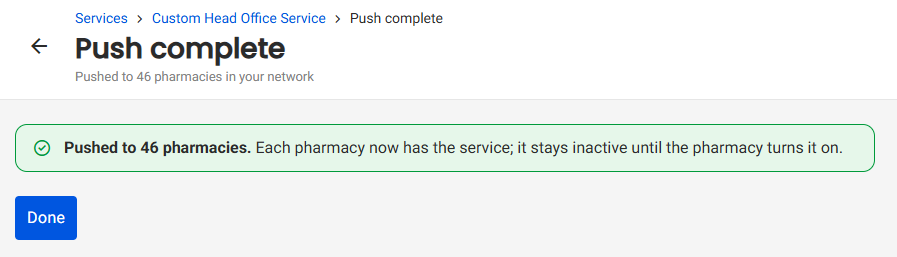
- You will see a confirmation that the service is now pushed to each pharmacy selected. Select Done.